

How To Create A Minecraft Server Ip
How To Set Up A Public Minecraft Server
A simple 10-step guide to create a world for you and your friends — in less than 10 minutes!

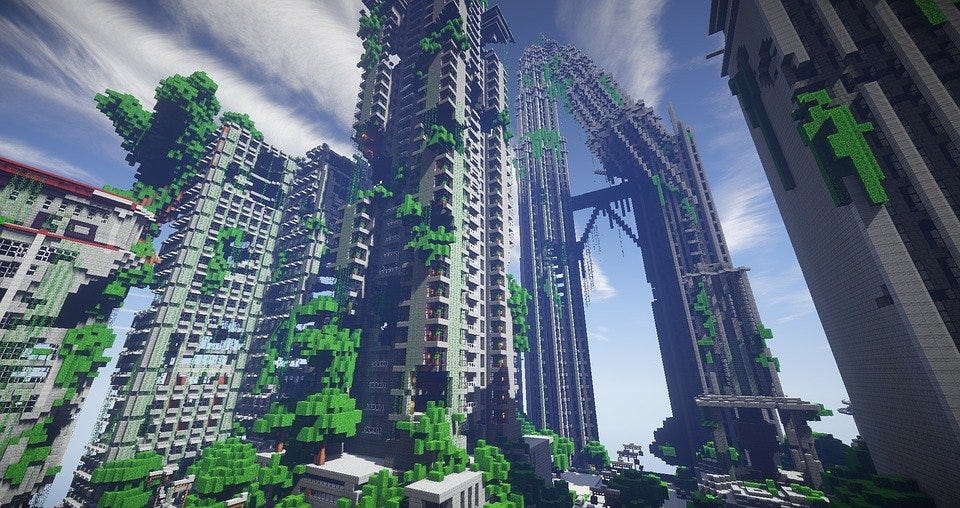
Today, I will be showing you the easiest way to set up a public vanilla Minecraft server for you and your friends, without spending a single dollar. Without further ado, let's begin!
#1 — Create a server folder
In whatever directory you choose, create a new folder — this is where all of the server files will be downloaded and run from.
#2 — Download JAR file
You can download the official Minecraft Server .jar file here. Save it to the server folder you just created.
#3 — Create the run script
In order to actually host the server, you will need a script to run the .jar file. Open a new text file, and copy the following command into it:
java -Xmx1024M -Xms1024M -jar minecraft_server.1.16.4.jar nogui The minecraft_server.1.16.4.jar is the current Minecraft server version available at the time of writing this. If there is a new version released, simply change this to the name of the .jar file that you previously downloaded.
The -Xmx and -Xms flags are allocating the memory used for the server. If you want to increase these values, you can (in muliples of 1024).
If you are on Windows, save this file as run.bat. If you are on Linux, save this file as run.sh. Make sure you change the extention from .txt so that the file can be properly executed.
#4 — Run the script
If you are on Windows, simply double click the newly created run.bat.
If you are on Linux, you will first have to make the file executable. First, type the command chmod +x run.sh. This enables the script you just created to be executable. Then, you can run the script with ./run.sh.
#5 — Accept EULA
After running the script, you will see warning about accepting the EULA agreement. Close this window, and if you look back in the server folder, you will see a number of new files that have been generated. Open the file eula.txt, change the line eula=false to eula=true, and then save and close the file.
#6 — Test the server locally
Now that the EULA agreement is accepted, you can run the script to start the server again (run.bat or run.sh). You should see more new files that were generated in the server folder. Once the configuration is set up and the world is generated, you can test to see if your server works.
Open Minecraft and click on multiplayer. In the server address bar, enter localhost and click connect.
Congratulations, you now own your very own Minecraft server! But now, you want to be able to play with friends, so you will have to open up the server to incoming connections.
#7 — Find internal and external IP addresses
You will need to find your internal (private) IP address in order to port forward in the next step, and you will need your external (public) IP for other people to connect to your server.
First, to find your internal IP:
Windows
Open the command prompt by typing cmd into the search bar and hitting enter. Type the command ipconfig and you will see the list of Wi-Fi cards and Ethernet adapters.
Linux
If you are on Linux, open a terminal with ctrl + alt + t. Type the command ifconfig and you will see the list of Wi-Fi cards and Ethernet adapters.
Depending on how you are connected to the internet (Wi-Fi or Ethernet), look for the IPv4 Address (which starts with 192.168) under your internet connection type — this is your private IP address.
To find your external IP:
You can simply type "my IP" in Google and it will provide your public IP address. Alternatively, you can go to https://whatismyipaddress.com/ and it will also tell you your public IP address.
#8— Port Forwarding
Port forwarding is the process of opening up a specific port on your local network, so that incoming traffic can connect to a service. In this case, we will be opening up the default Minecraft port, 25565.
In order to port forward, you must have admin access to your local network. Many home routers can be accessed by typing 192.168.1.1 in a web browser. Enter the admin credentials, and look for the "port forwarding" settings. This is usually under an "advanced settings", "advanced setup", or "networking" tab.
For example, on a NetGear router, port forwarding is found under "Advanced" -> "Advanced Setup" -> "Port Forwarding/Port Triggering".
Here, you will want to click on "Add Custom Service". Give the service name anything recognizable, like "Minecraft Server". Under the service type, make sure TCP/UDP is selected. For the internal and external port ranges, enter the default Minecraft port "25565". Finally, for the interal IP address, enter the private IP that you found in step #7. Click apply, and then your changes will be saved.
#9 — Edit the server configuration files
Open the server.properties file with your text editor of choice, and scroll down to where server-port and server-ip are. Make sure the server-port is set to the port that you just opened for port forwarding, and server-ip is your internal (private) IP address.
These two fields should look like:
          server-port=25565
server-ip=192.168.1.88
(192.168.1.88 will be whatever your private IP is.)
You can also change other Minecraft settings in this file, such as difficultly, game mode, PvP, etc. Once you make all your changes, save and close this file.
#10 — Test the public IP of the server
Now that the port is open for communication and the settings are properly configured, run the server again by either clicking the run.bat file (Windows) or running the command ./run.sh (Linux). Once the server is finished loading, you can test to see if your server works via your public IP address that you found in step #7. Voilà! You and your friends can now play on the server by entering this same public IP address into their Minecraft clients!
Thank you
Minecraft has been a huge part of my gaming history, and I get so much nostalgia every time I create a new world. I put this guide together to help everyone be able to share this same experience. There are so many ways to create a Minecraft server, but I wanted to write a guide to provide the simplest and quickest way to help you get started. If this if your first time creating your own Minecraft server, or you've done it a hundred times before, I hope this guide was easy to follow, and I wish you the best of luck.
Thank you for reading along — Your new world awaits!
How To Create A Minecraft Server Ip
Source: https://towardsdatascience.com/how-to-set-up-a-public-minecraft-server-33c2da0bbc2
Posted by: matterathationdeas02.blogspot.com
0 Response to "How To Create A Minecraft Server Ip"
Post a Comment